Congratulations on your new Showit template! If you’re looking to import a Showit template, this guide walks you through the exact steps to import a Showit template into your account, create a backup copy, and so you can start customizing your website with confidence.
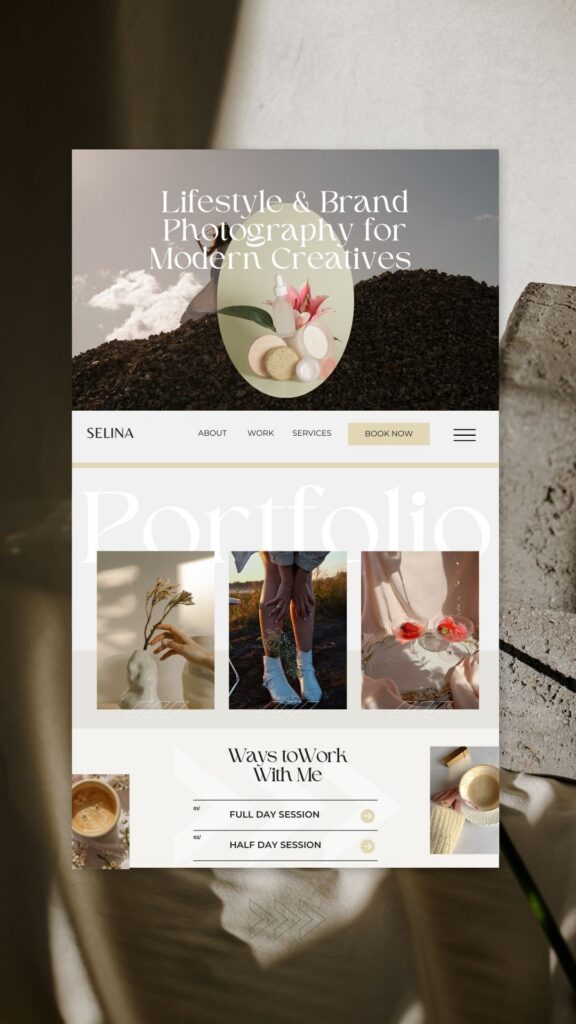
Before diving in, I highly recommend creating a duplicate copy of your original template.
This gives you a clean backup version that you can always refer back to later or use to import pages and sections as needed. As you update layouts, replace content, and make the design your own, you’ll have peace of mind knowing the original version is safely stored in your account should you ever need it.
Step 1: How to Import a Showit Template
After purchasing your template, you’ll receive a PDF containing your unique Showit template key.
To import your template:
- Log into your Showit account using Google Chrome, as the Showit Builder is only supported in Chrome (your finished site will be viewable on all browsers)
- Navigate to Your Designs
- Click Add Design to Library (see images below)
- Enter the template key provided in your PDF
- Click Add Now

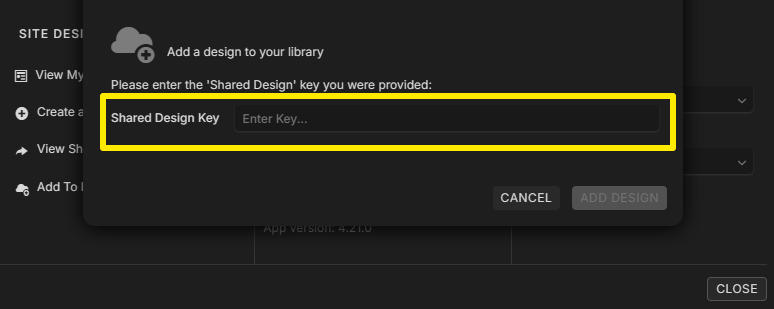
Once imported, your template will appear in your Design Library and is ready to customize.
Before You Start: Create a Backup Copy
Before making any edits, I highly recommend creating a duplicate copy of your template.
This allows you to keep a clean version of the original design in your account, giving you something to reference later if needed. It also provides peace of mind as you customize your website.
Step 2: Duplicate Your Template
To create a backup copy:
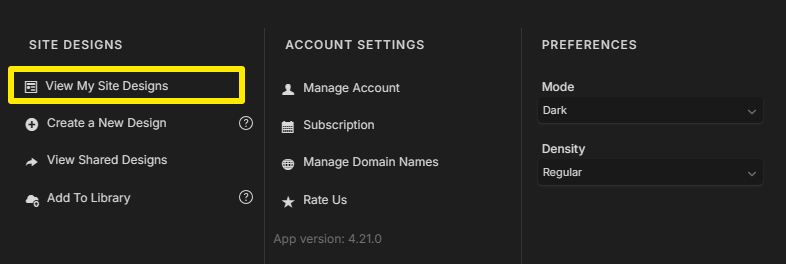
- Click your name in the lower-left corner of Showit
- Select View My Site Designs (see images below)
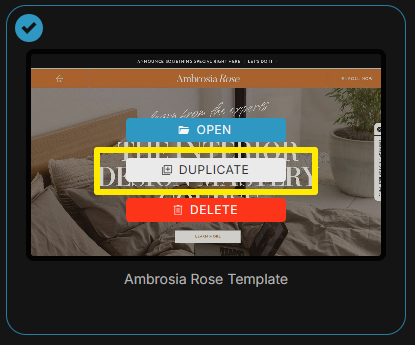
- Locate the imported template.
- Click on the design
- Select Duplicate
- Rename the duplicated version
Suggested Naming Convention
Original Template:
- Template Name (MASTER)
Working Copy:
- Template Name (CUSTOM)
This makes it easy to identify which version you’re actively editing while keeping a clean backup available.
Step 3: Start Customizing
Once your duplicate has been created, use the copied version as your working website.
From there, you can:
- Replace placeholder images
- Update your text and branding
- Customize colors and fonts
- Add additional pages
- Connect your domain and prepare for launch
Your original template will remain safely stored in your account should you ever need to reference the original layouts or design elements.
Final Tip
Creating a duplicate takes less than a minute, but it can save you hours of frustration later. Keeping an untouched backup copy is one of the best habits you can develop when working with a Showit template.
Happy customizing!



comments +